Conversation Visibility: SFTP Pipeline Status Dashboard and Conversations Lookup
Last updated: October 22, 2026
Overview
Conversation Visibility is a set of two self-serve tools that let you see, without contacting support, what happened to the conversations you send to Level AI over SFTP.
Pipeline Status Dashboard - a pipeline-by-pipeline view of every ingestion run, every file we received, and the status of each conversation inside those files.
Conversations Lookup - a single search box where you can enter the conversation ID from your upstream system and immediately see whether that conversation reached Level AI.
Together they answer three questions: Did my data arrive? Was it processed? If not, why not?
Both tools are available under Settings > Data ingestion. They currently cover SFTP-based conversation ingestion pipelines, for both Call and Chat channels.
Conversation Stages
Every conversation we receive ends up in one of the stages below. The same vocabulary is used in the dashboard, in the exported status files, and in Conversations Lookup.
Stage | What it means | What to do |
|---|---|---|
INGESTED | The conversation was received, processed and is available in Level AI. This is the expected end state. | Nothing. Use "Open in Level AI" from Conversations Lookup to jump straight to the conversation. |
DUPLICATE | A conversation with the same upstream conversation ID has already been ingested. The record was skipped so the original is not overwritten. | Usually expected when a file is re-sent or a date range is re-uploaded. Confirm the original record is present in Level AI under the duplicate_of column. |
INCOMPLETE - metadata missing | A recording was received but the matching metadata row has not arrived, so the conversation cannot be built. | Check that the metadata file for that conversation was pushed to the SFTP server, and that the conversation ID in the metadata matches the recording file name. |
INCOMPLETE - recording missing | A metadata row was received but the matching recording file has not arrived. | Check that the recording was uploaded and that the file name matches the identifier in the metadata row. |
FAILED | The conversation was received but could not be processed. Common causes include an unreadable or zero-byte audio file, an unsupported format, or an invalid value in a required metadata field. | Download the source file from File Logs and validate the row. Check the failed reason column and fix the issue and drop the file again. |
Pipeline Status Dashboard
The dashboard is organised from the broadest view down to the individual conversation. The flow is:
Pipeline level view > Configuration > Run History (and View files) > File Logs > Per-conversation status
1. Pipeline level view
Go to Settings > Data ingestion > Pipeline Status. The landing page lists every integration pipeline configured on your account.
Total Pipelines, with a breakdown of how many are active and how many are disabled.
Records Processed (24h) across all pipelines.
Filter tabs for All, Active and Disabled pipelines.
One card per pipeline, showing the source and channel (for example Sftp - Call, Sftp - Chat), Ingested (24h), Files (24h) and Last Run.
This is the fastest way to confirm the pipeline is alive. If Last Run is far older than your configured frequency, or Ingested (24h) is zero on a day you pushed data, start your investigation here.
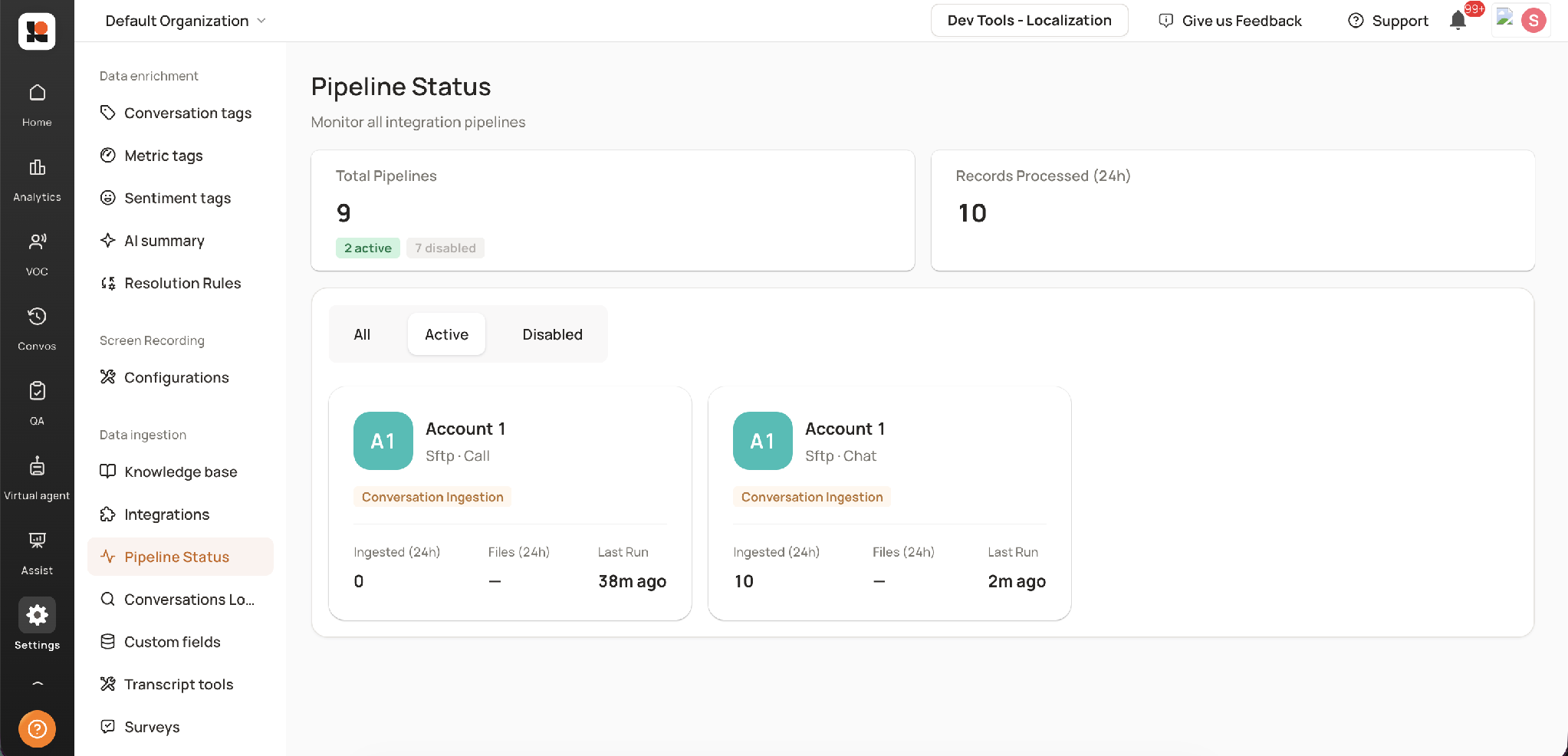
Pipeline Status: all pipelines with 24-hour ingestion and last run time
2. Pipeline detail and Configuration
Click any pipeline card to open its detail page. The header repeats the key facts: source and channel, polling frequency, batch size and how long ago the pipeline last ran. Below that are three tabs: Overview, Run History and File Logs.
The Overview tab shows Ingested (24h), Files Received (24h) and Last Run for this pipeline alone, followed by the Configuration block.
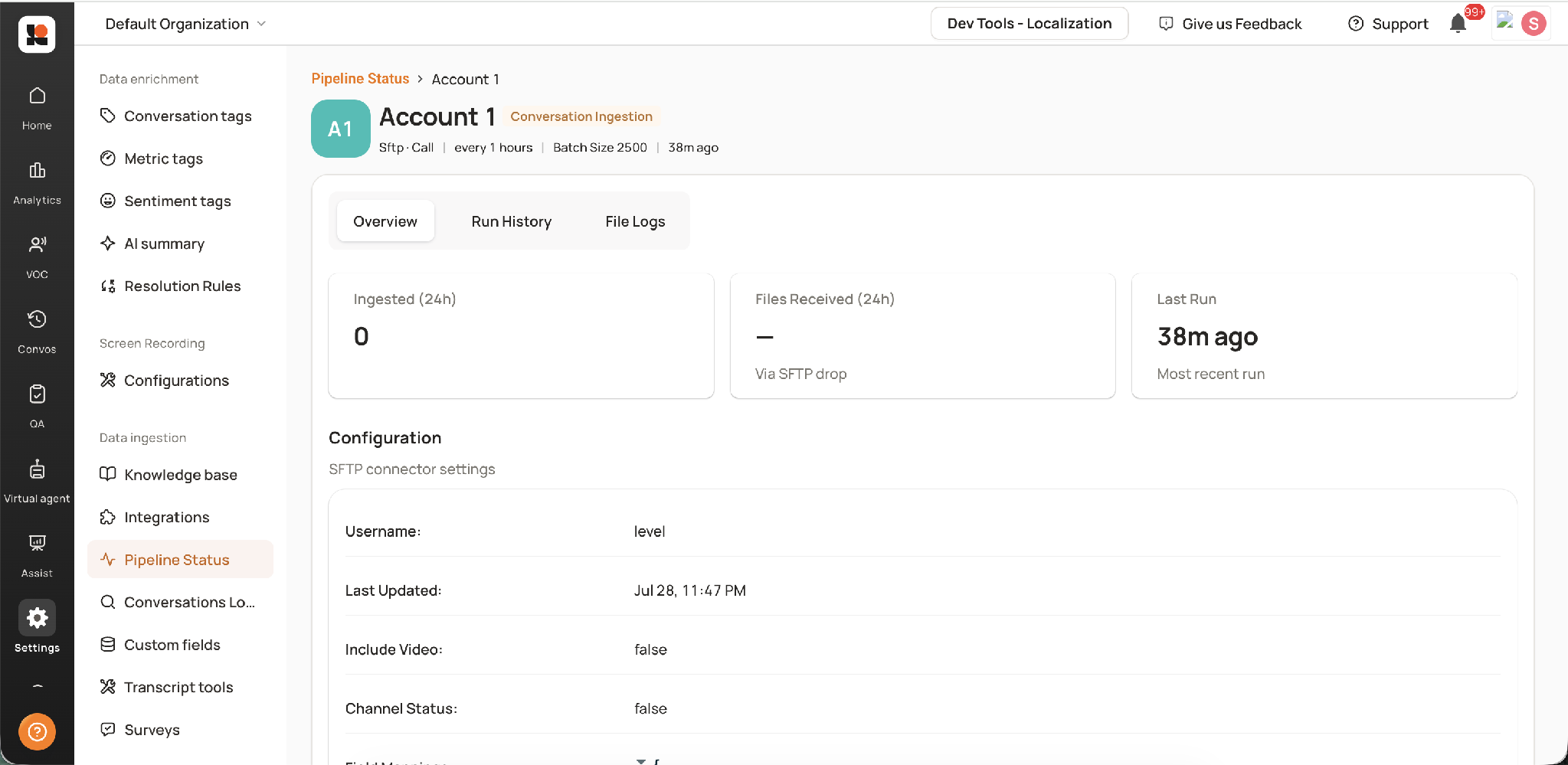
Pipeline detail: Overview tab with 24-hour counters and configuration
Configuration is a read-only view of the SFTP connector settings we are running for you. Use it to confirm that what we have on our side matches what your team expects.
Username - the SFTP user the pipeline authenticates with.
Last Updated - when the configuration was last changed.
Include Video and Channel Status - feature flags for this pipeline.
Field Mappings - how each column in your metadata file maps to a Level AI field. An empty value on the right means that field is not being mapped.
Locale Mapping and Search Filters - any locale translation or file filtering applied to the pipeline.
Search Filters: Any filters applied on LevelAI side on campaign, skill or Agent groups can be viewed here.
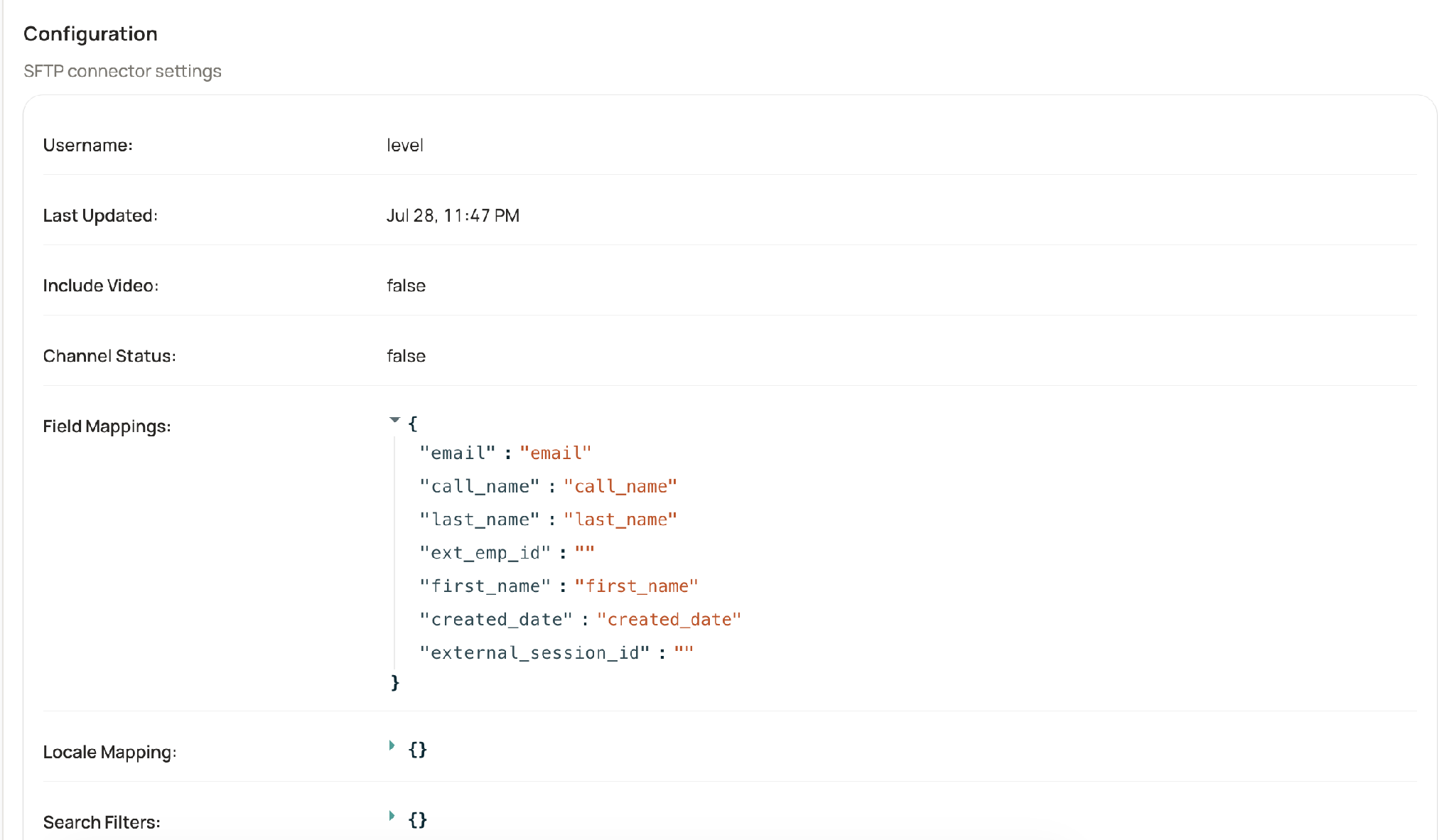
Configuration: read-only SFTP connector settings and field mappings
A large number of "metadata missing" or "failed" conversations is often a field mapping problem rather than a delivery problem. If a required field is unmapped here, check this block first. Many would be due to filters being applied on our side which leads to conversations missing
3. Run History and View files
The Run History tab lists each execution of the pipeline in reverse chronological order, with the time of the run, its outcome and the number of records handled.
Use it to see whether the pipeline ran on schedule, and which specific run a problem belongs to.
Select View files on a run to open a popup listing every file that was picked up in that run. This is how you connect "something went wrong at 3 PM" to the exact files involved.
From the popup you can move directly to the file-level actions described below.
4. File Logs
The File Logs tab lists the metadata files we received over SFTP for a chosen date. Pick a date using the File date selector at the top right. For each file you see the file name, when it was received, its size and how many records it contained.
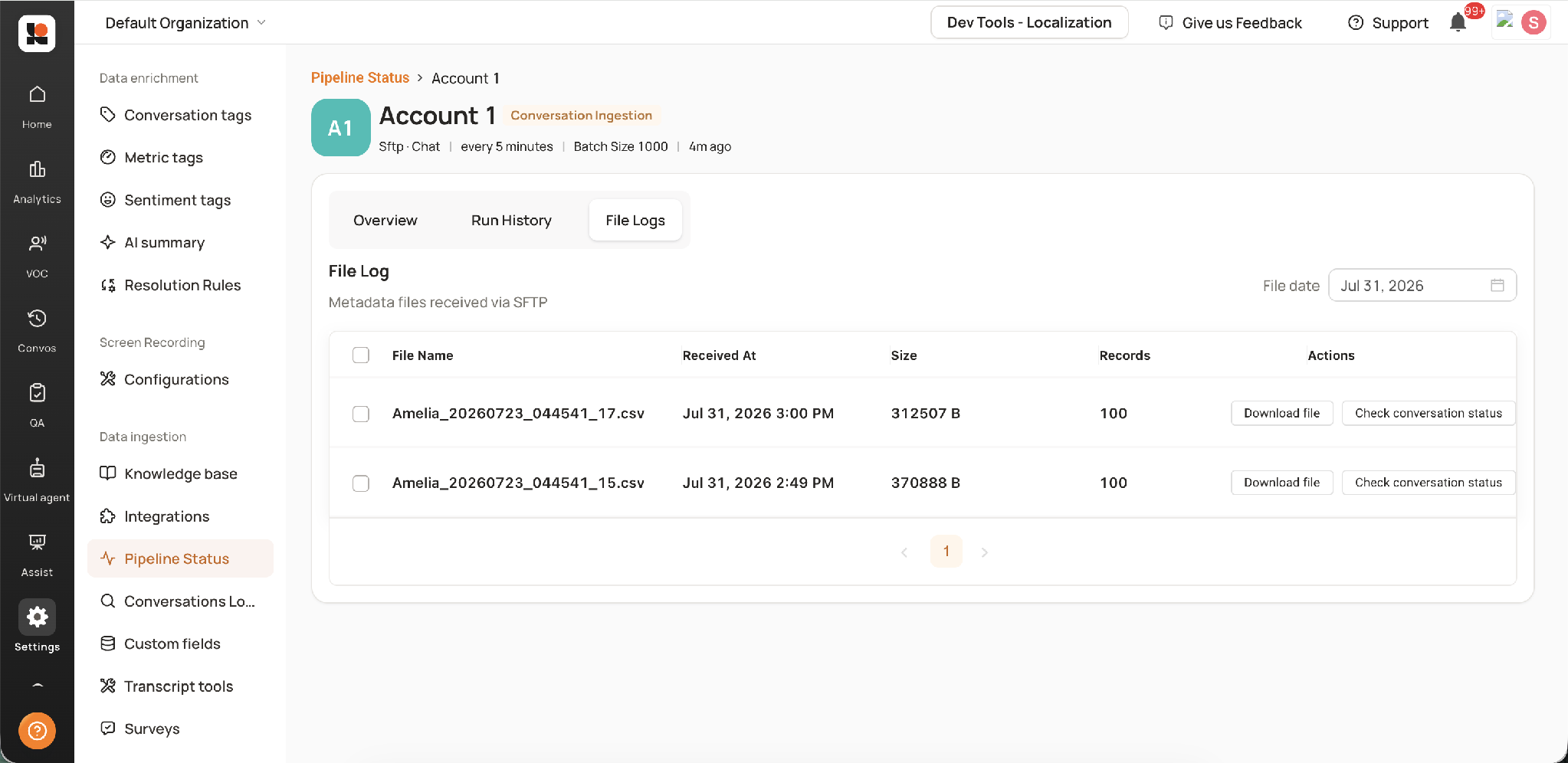
File Logs: metadata files received via SFTP, with per-file actions
Two actions are available on every row:
Download file - downloads the original file exactly as it was delivered to us. Use this to confirm what was actually sent, rather than what was intended to be sent.
Check conversation status - downloads a file listing every conversation in that source file together with its stage (Ingested, Duplicate, Incomplete or Failed). This is the per-conversation answer for a whole batch in one export.
You can also select several files using the checkboxes on the left and act on them together.
Conversations Lookup
Conversations Lookup answers the single most common question: "we sent this conversation, where is it?" Go to Settings > Data ingestion > Conversations Lookup.
Choose the pipeline you sent the conversation on from the dropdown, for example Sftp - Chat.
Enter the conversation ID from your upstream system in the search box. You can also search by phone number or agent ID.
Select Search.
The result card shows:
Status - the current stage of the conversation, also shown as a badge at the top of the card.
External ID - the identifier you sent us.
Internal ID - the Level AI identifier for the same conversation.
Source - the pipeline and connector the conversation arrived on.
Source File - the exact file the conversation was found in. This is the link back to File Logs.
Ingested At - the timestamp the conversation was processed.
Open in Level AI - opens the conversation itself, available once the status is Ingested.
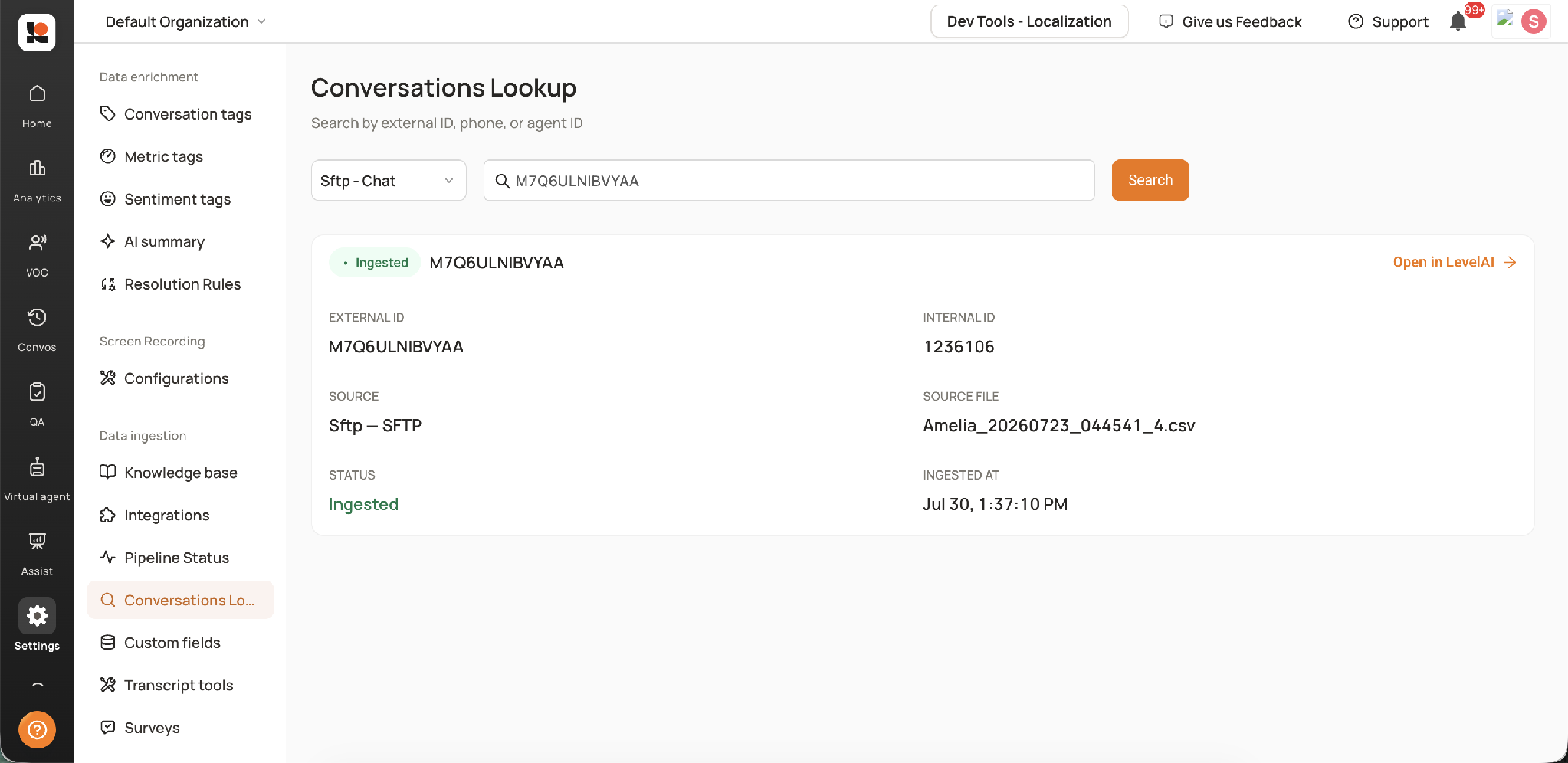
Conversations Lookup: search by external ID, phone or agent ID
If the search returns no result at all, the conversation never reached us on that pipeline. Confirm the pipeline selection first, then check File Logs for the date the conversation should have been delivered.
Debugging Use Cases
The three flows below cover almost every ingestion question. Use the quick reference first, then follow the matching flow.
If you want to know... | Start here | Then |
|---|---|---|
Where one specific conversation is | Conversations Lookup | Read the status and source file; open in Level AI if ingested |
Whether a whole file or batch landed | Pipeline Status > File Logs | Use "Check conversation status" to export the per-conversation status |
Whether anything is broken over a date range | Pipeline Status > Run History | Open the failing run, view its files, then export conversation status for each |
Whether we are receiving your files at all | Pipeline Status > Overview | Compare "Files Received (24h)" and "Last Run" against your push schedule |
Use case 1: Single conversation lookup
Scenario: a supervisor cannot find one specific call or chat in Level AI.
Open Conversations Lookup, select the pipeline, paste the upstream conversation ID and search.
If the status is Ingested, the conversation is in Level AI. Select Open in Level AI. If the supervisor still cannot see it, the issue is access or filters, not ingestion.
If the status is Duplicate, the conversation was sent more than once and only the first copy was kept. Search for the original and confirm it is present.
If the status is Incomplete, note which half is missing. Metadata missing means we have the recording but not the row; recording missing means the opposite. Re-push the missing piece and confirm the identifiers match on both sides.
If the status is Failed, note the Source File, go to Pipeline Status > File Logs, download that file and inspect the row for the conversation. Look for an empty required field, a malformed timestamp or a zero-byte recording. Failure reason column would indicate the reason why the conversation failed to ingest
If there is no result, the conversation never arrived. Move to Use case 2 to check whether the file itself was delivered.
Use case 2: Bulk lookup for a file or batch
Scenario: a day or a batch of conversations appears to be short, and checking IDs one at a time is not practical.
Open Pipeline Status and select the pipeline that carries the affected channel.
Go to File Logs and set File date to the day the data was pushed.
Compare the Records count on each file against what your side expects to have sent. A missing file here means the delivery never completed, so investigate on the SFTP push side.
For each relevant file, select Check conversation status. The exported file lists every conversation in that batch with its stage.
Group the export by stage. Duplicates usually explain an over-count; Incomplete and Failed explain an under-count.
If you need to see exactly what was sent, use Download file on the same row and compare it against the status export.
Spot-check two or three of the failures in Conversations Lookup to confirm the pattern before raising a ticket.
Use case 3: Errors over a time period
Scenario: you want to know whether ingestion has been healthy across a week, or you are checking after a known outage on either side.
Open Pipeline Status. On the pipeline card, check Ingested (24h), Files (24h) and Last Run for an immediate health signal.
Open the pipeline and go to Run History. Scan the runs across the period for gaps in the schedule or runs that handled unexpectedly few records.
On any suspicious run, select View files to see exactly which files that run picked up.
Move to File Logs and step through each date in the period, confirming that the expected number of files arrived each day.
Run Check conversation status on the files from the affected dates and consolidate the exports to quantify the impact by stage.
If the failures cluster on one field or one file naming pattern, review the Configuration block on the Overview tab before assuming a platform issue.
Notes and Limitations
Both tools currently cover SFTP conversation ingestion pipelines. Other connector types are not yet represented.
Counters on the Overview and pipeline cards are rolling 24-hour figures. For anything older, use Run History and File Logs with a specific date.
Configuration is read-only. To change field mappings, filters or credentials, contact your Level AI TAM.
File Logs is scoped to one date at a time. Investigating a multi-day window means stepping through the dates individually.
Conversations Lookup is scoped to the pipeline selected in the dropdown. A conversation sent on the Call pipeline will not be found while the Chat pipeline is selected.