Salesforce Integration: Connected App Authentication Setup
Last updated: October 19, 2026
Overview
The Level AI Salesforce integration now supports Connected Apps authentication method. With Connected Apps, Level AI authenticates using credentials from a Connected App created in your Salesforce org, instead of an interactive OAuth sign-in.
One app per Level AI org. Each Level AI org needs its own set of credentials. To connect Salesforce to two Level AI orgs, create two separate apps in Salesforce and use one app's Client ID and Client Secret in each org. Do not reuse the same credentials across Level AI orgs.
You need three values to set up the Connected App method:
Field in Level AI | Where it comes from in Salesforce |
|---|---|
Client ID | The Connected App's Consumer Key |
Client Secret | The Connected App's Consumer Secret |
Domain URL | Your Salesforce org domain, for example acme.salesforce.com |
Before you start
Admin access to your Salesforce org, to create and configure the Connected App
Access to Settings > Integrations in Level AI
Setup on Salesforce
A Salesforce admin creates an app in Salesforce that Level AI authenticates against, then copies its Consumer Key, Consumer Secret, and the org's domain URL.
New setup: create an External Client App (steps below). It provides the same Consumer Key and Consumer Secret.
Existing Connected App: skip to step 8 and copy its credentials from App Manager.
Must use a Connected App: ask Salesforce Support to enable Connected App creation in your org.
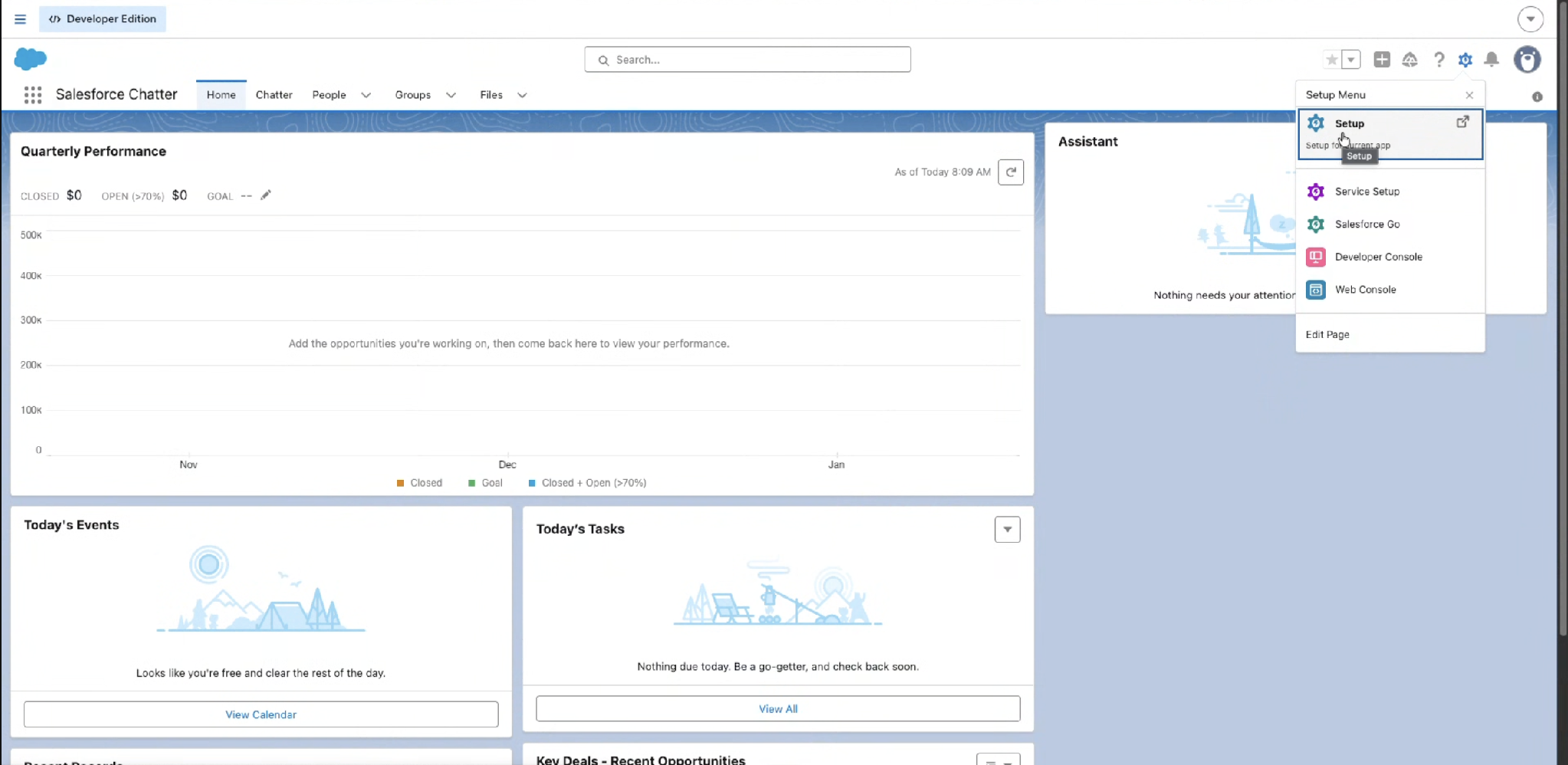
Open Setup. In Salesforce, select the gear icon at the top right, then select Setup.
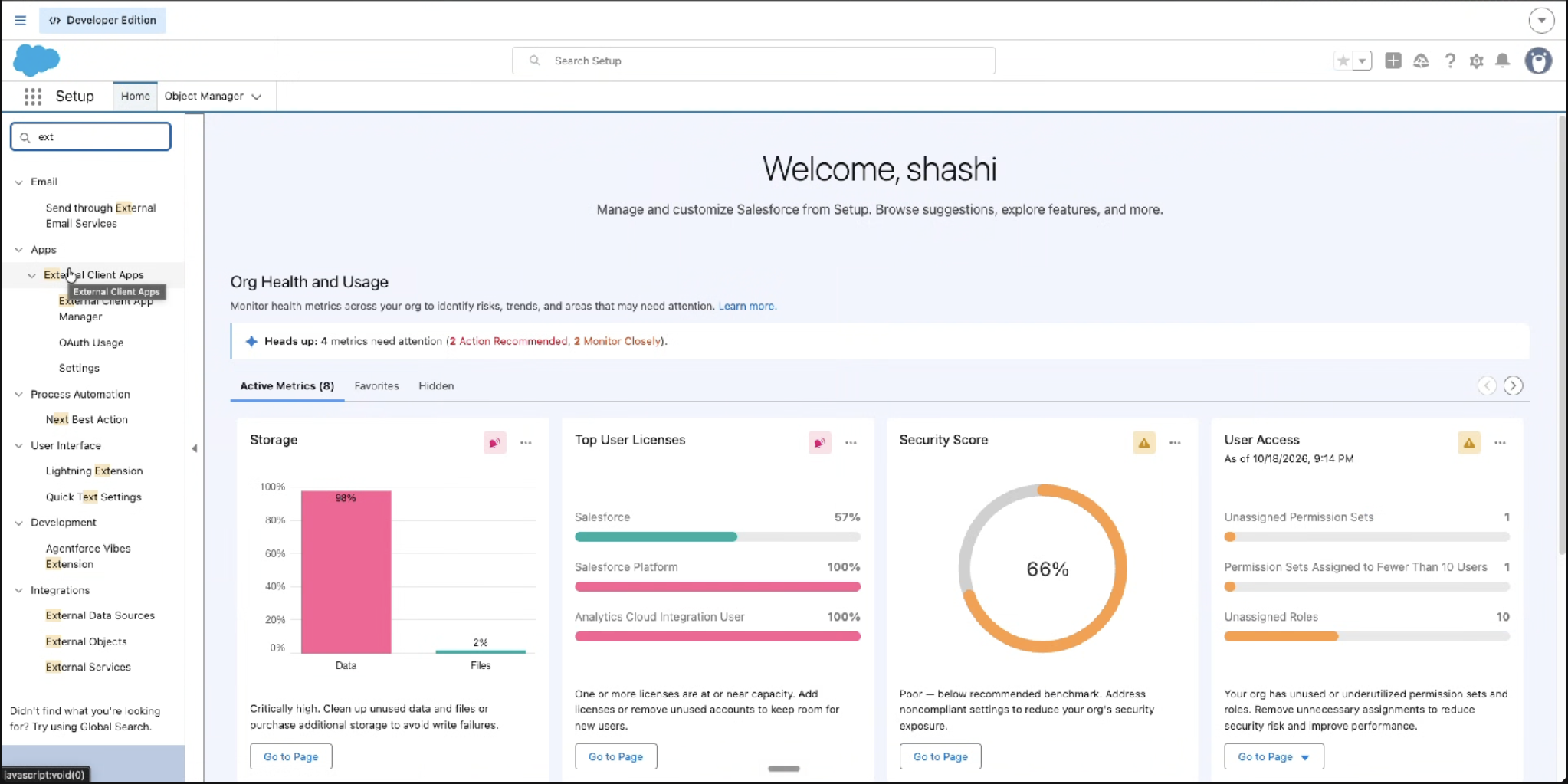
Open External Client App Manager. In the Quick Find box on the left, type External Client. Under Apps > External Client Apps, select External Client App Manager.
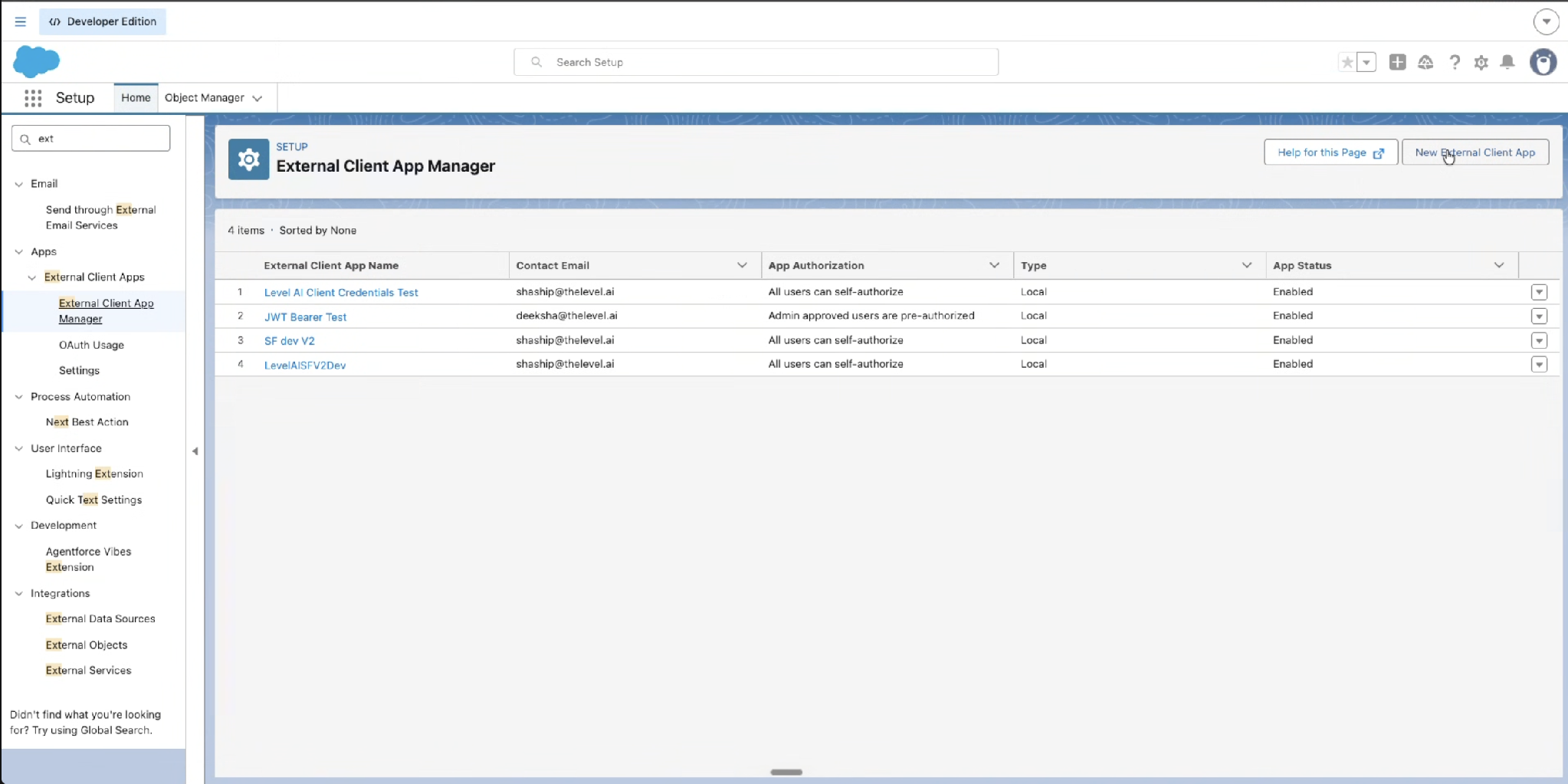
Create a new app. On the External Client App Manager page, select New External Client App at the top right.
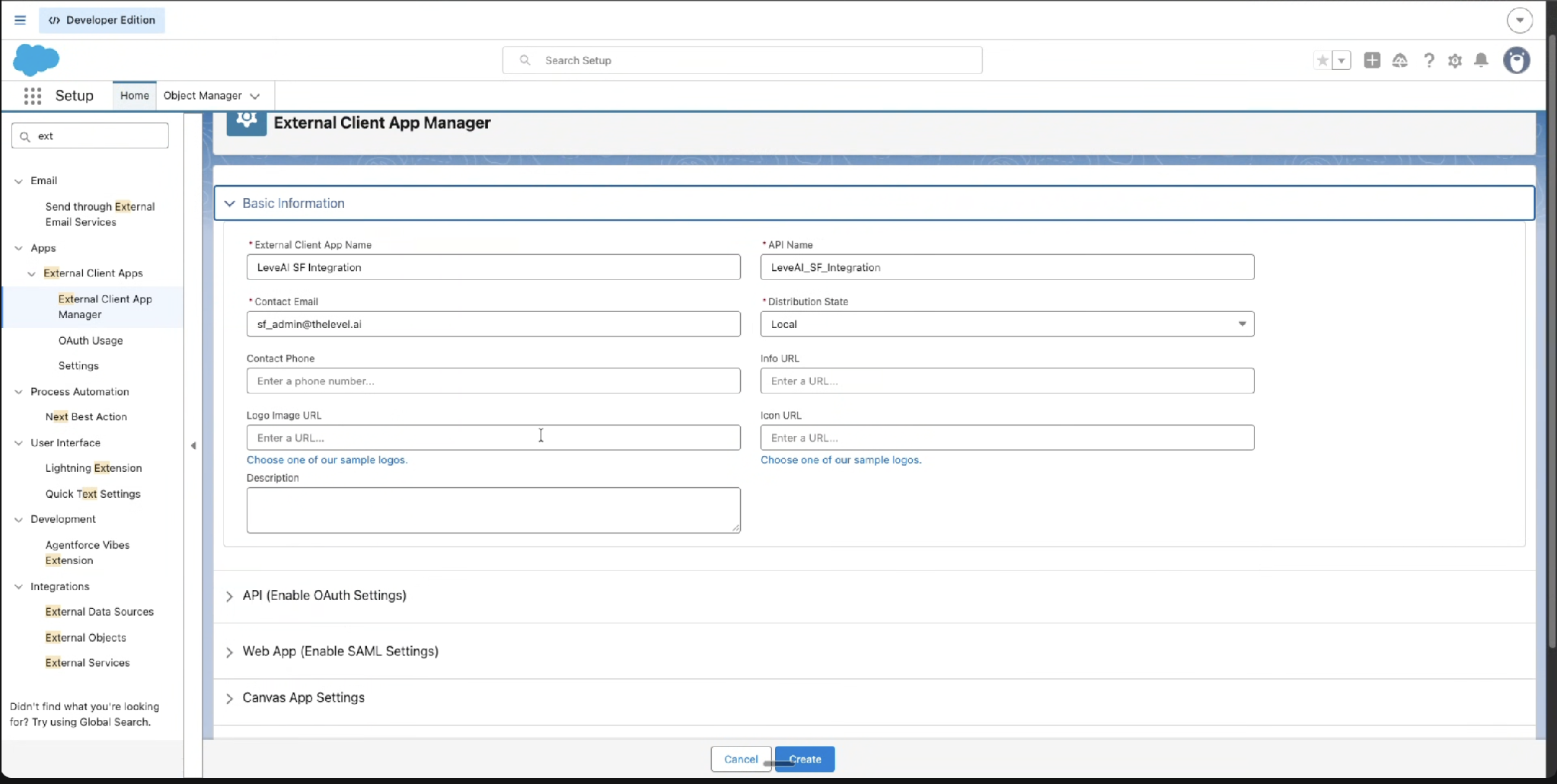
Fill in Basic Information. Enter these values and leave the optional fields blank:
External Client App Name: Level AI SF Integration
API Name: fills in automatically from the name, for example Level_AI_SF_Integration
Contact Email: the email of your Salesforce admin
Distribution State: Local
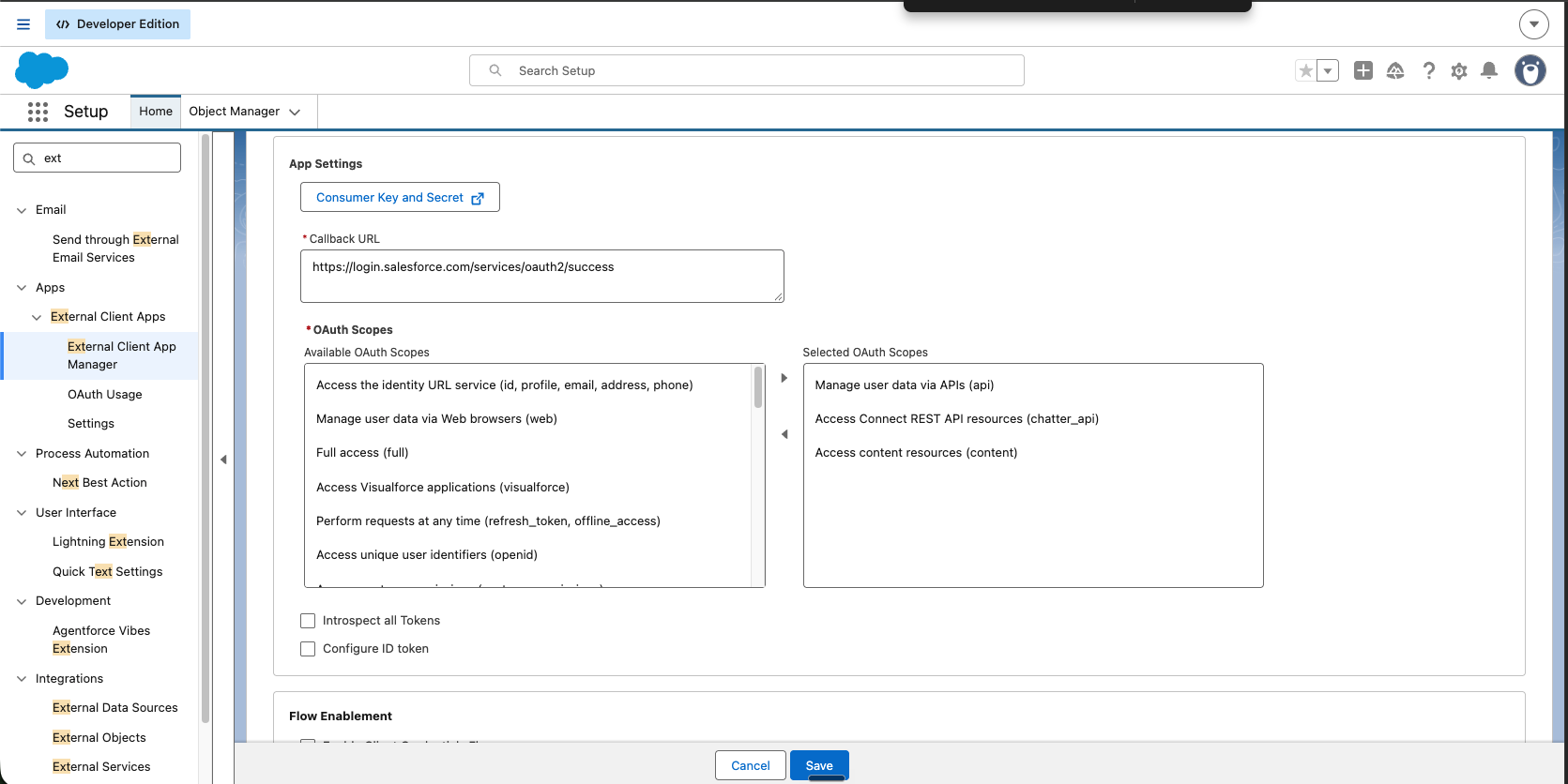
Configure OAuth. Expand API (Enable OAuth Settings) and set:
Tick Enable OAuth.
Callback URL: https://login.salesforce.com/services/oauth2/success (required by the form, not used by this flow)
OAuth Scopes: move these from Available OAuth Scopes to Selected OAuth Scopes with the right arrow:
Manage user data via APIs (api)
Access content resources (content)
Access Connect REST API resources (chatter_api)
Leave Introspect all Tokens and Configure ID token unticked.
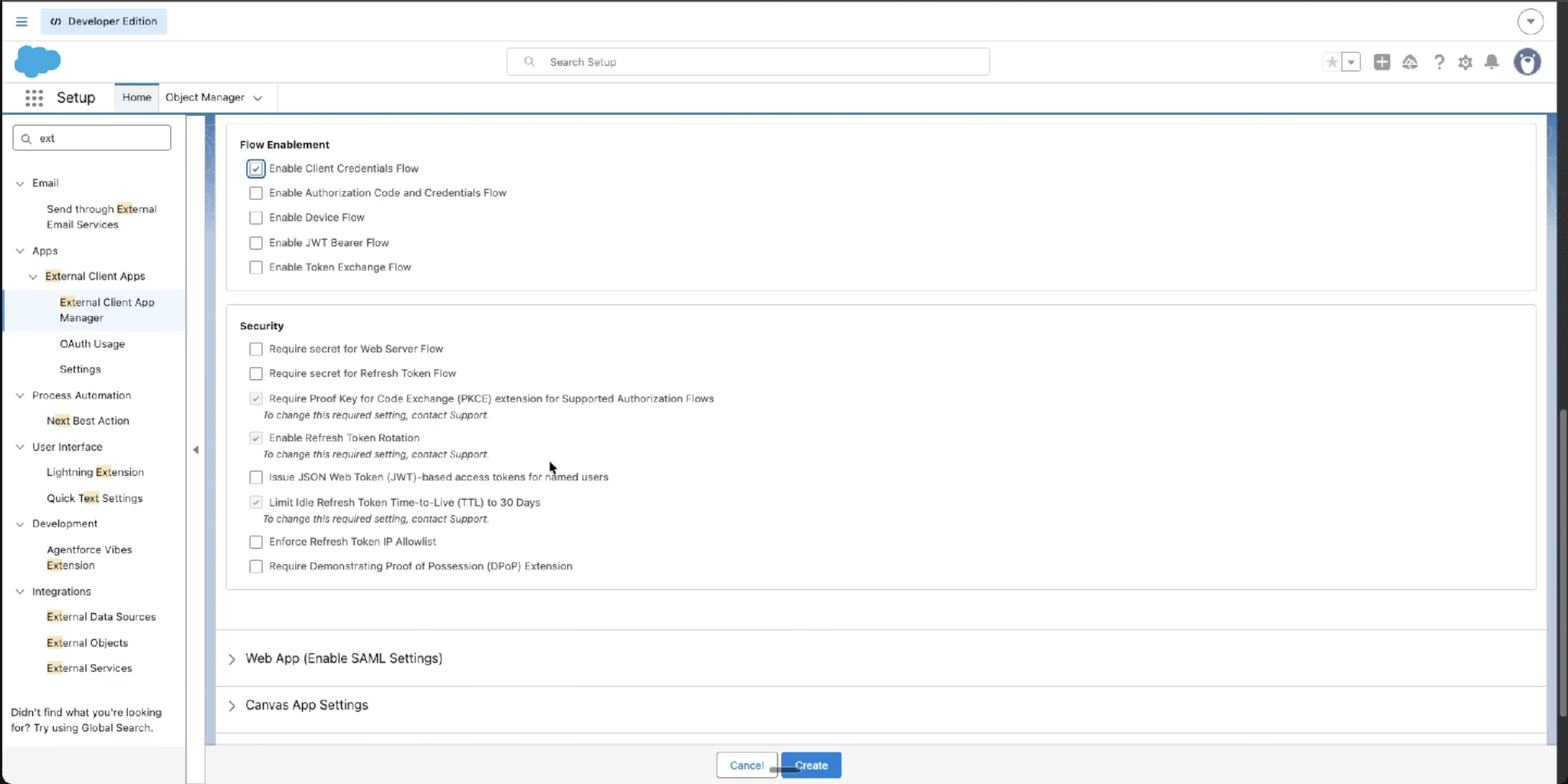
Enable the Client Credentials flow and create the app. Scroll to Flow Enablement and Security:
Under Flow Enablement, tick Enable Client Credentials Flow only. Leave the Authorization Code and Credentials, Device, JWT Bearer, and Token Exchange flows unticked.
Under Security, keep the defaults. The greyed-out ticked options (PKCE, Refresh Token Rotation, 30-day idle refresh token limit) are required by Salesforce and can't be changed.
Select Create.
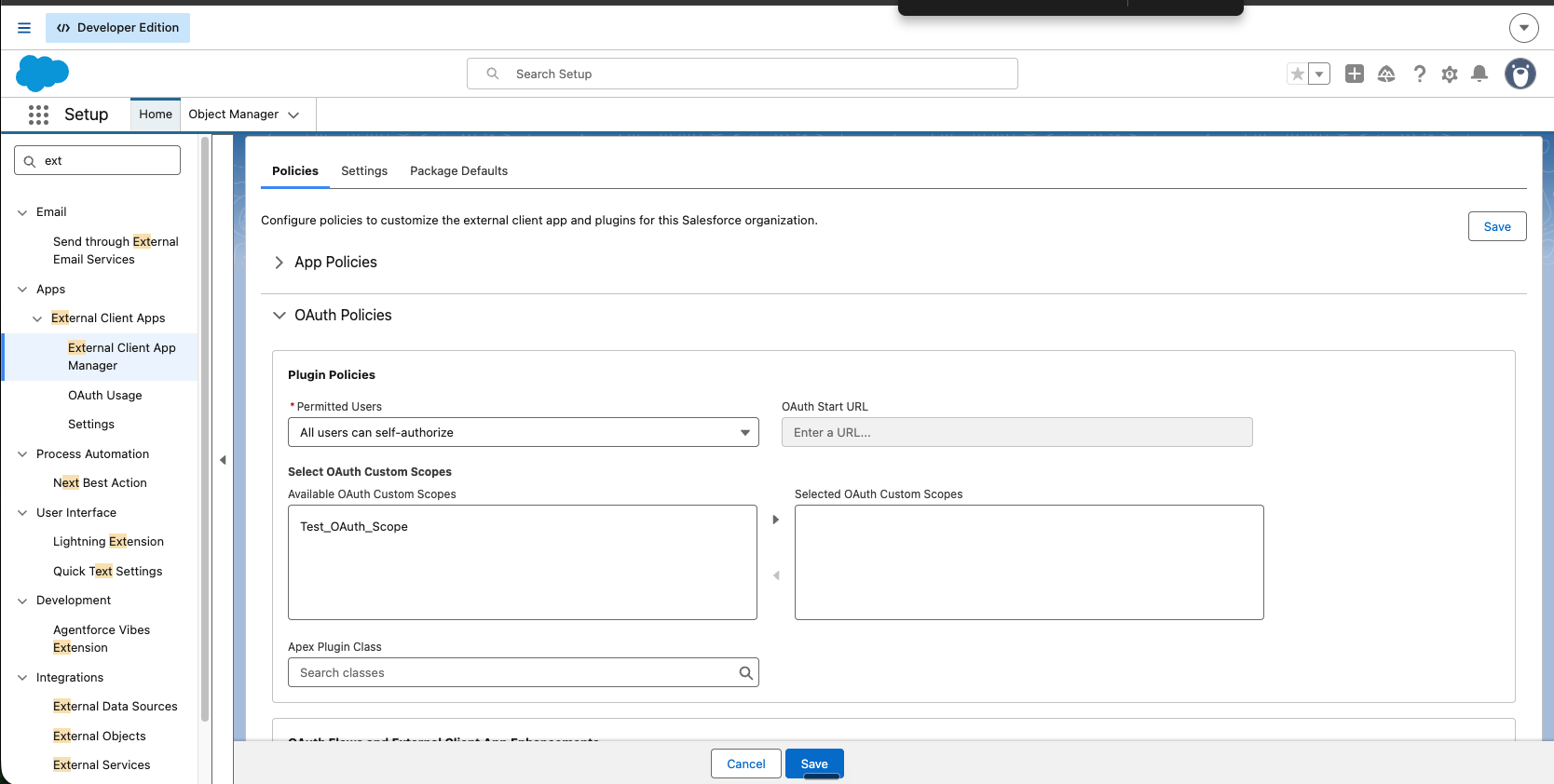
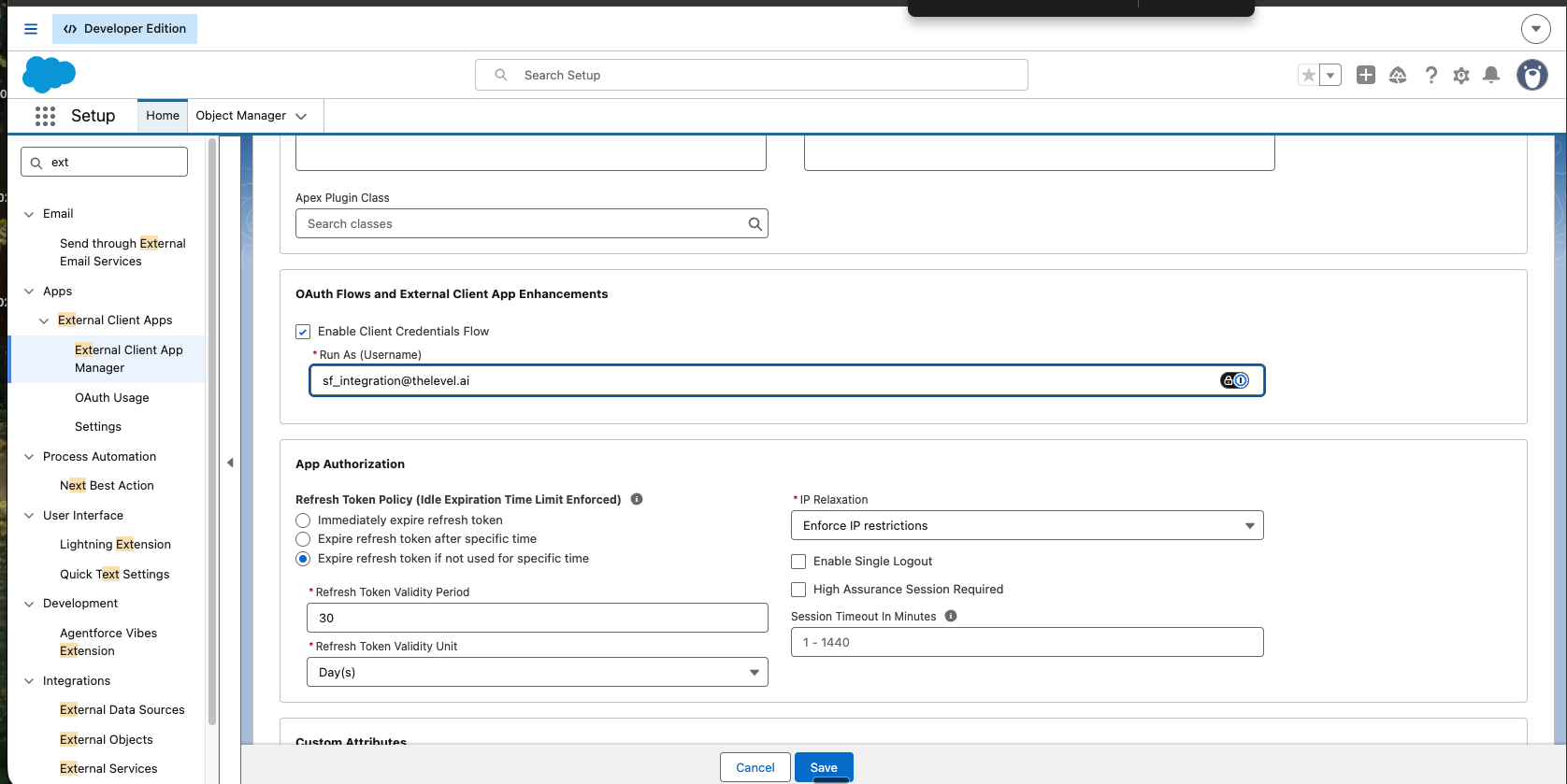
Set the Run As user. On the new app's page, open the Policies tab and select Edit. Expand OAuth Policies and set:
Permitted Users: leave as All users can self-authorize. Leave the custom scopes and Apex Plugin Class empty.
Under OAuth Flows and External Client App Enhancements, tick Enable Client Credentials Flow.
Run As (Username): the username of your integration user, for example sf_integration@yourcompany.com. This user needs API access to the records Level AI imports.
Leave App Authorization at its defaults, then select Save.
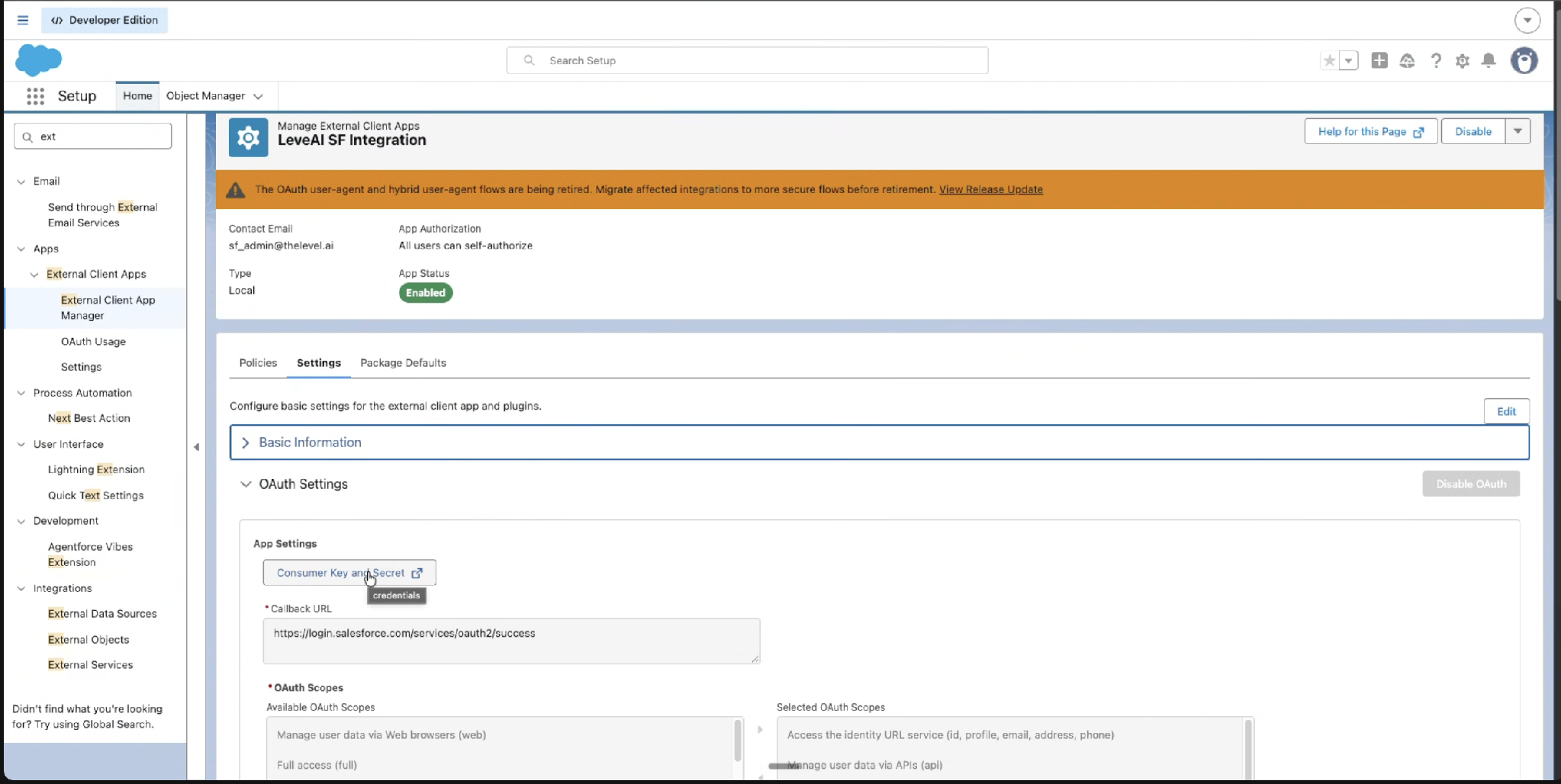
Open the credentials. On the app's page, open the Settings tab, expand OAuth Settings, and under App Settings select Consumer Key and Secret. Salesforce opens a new tab and may email you a verification code to enter.
Existing Connected App instead: in Setup > App Manager, open the app's menu, select View, then Manage Consumer Details.
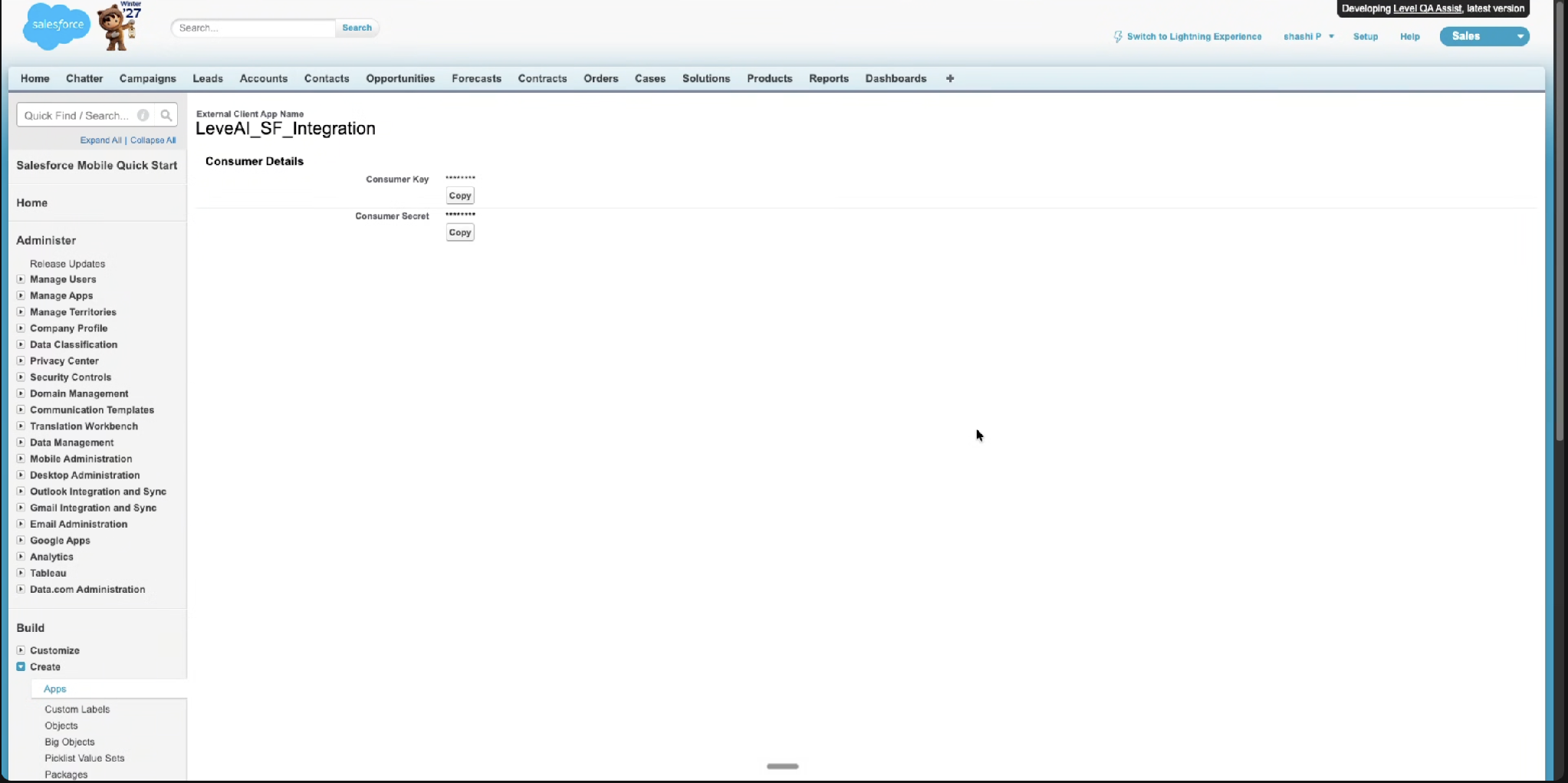
Copy the Consumer Key and Consumer Secret. On the Consumer Details page, select Copy next to each value. These are the Client ID and Client Secret in Level AI.
Copy the Domain URL. In Setup, search Quick Find for My Domain and copy the Current My Domain URL. This is the Domain URL in Level AI.
Salesforce can take a few minutes to apply new app settings. If the connection fails right after setup, wait and try again.
References: Salesforce: Connected Apps · Salesforce: Create a Connected App in Your Org
Setup on LevelAI
With the Client ID, Client Secret, and Domain URL from Salesforce, connecting in Level AI takes four steps.
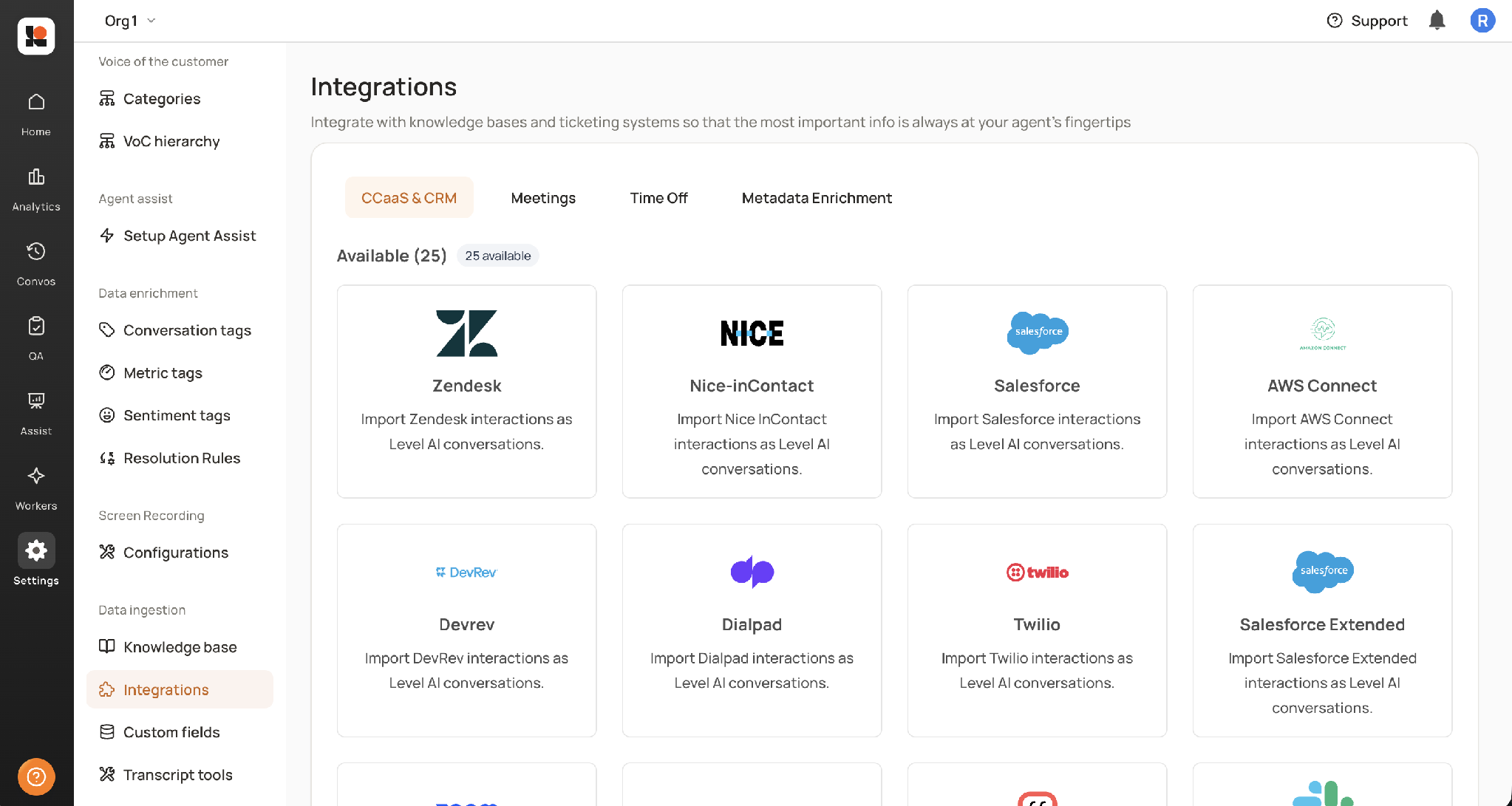
In Level AI, go to Settings > Integrations and open the CCaaS & CRM tab. Select the Salesforce card.
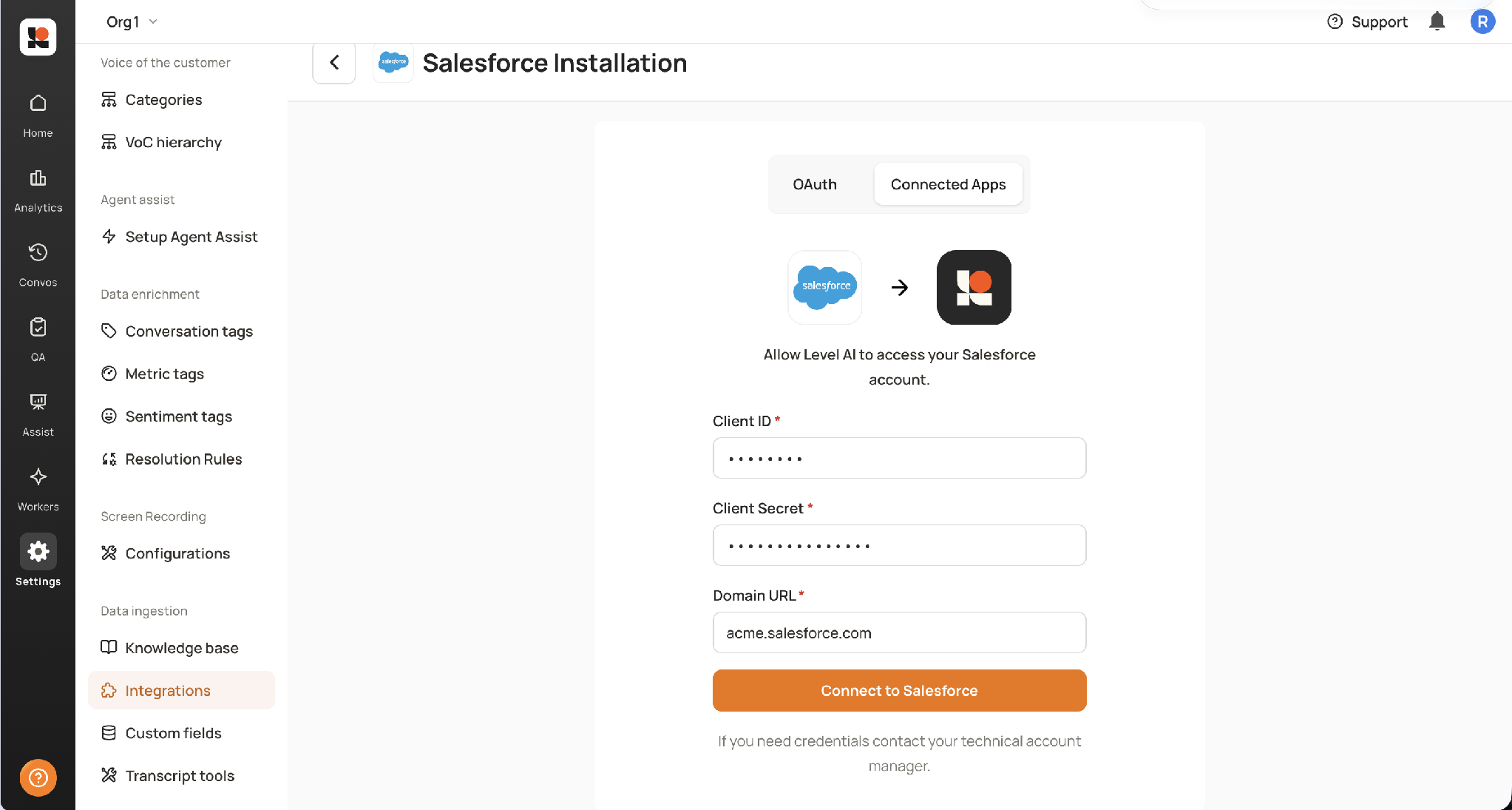
On the Salesforce Installation page, select the Connected Apps tab. The form shows three required fields: Client ID, Client Secret, and Domain URL. Connect to Salesforce stays disabled until all three are filled.
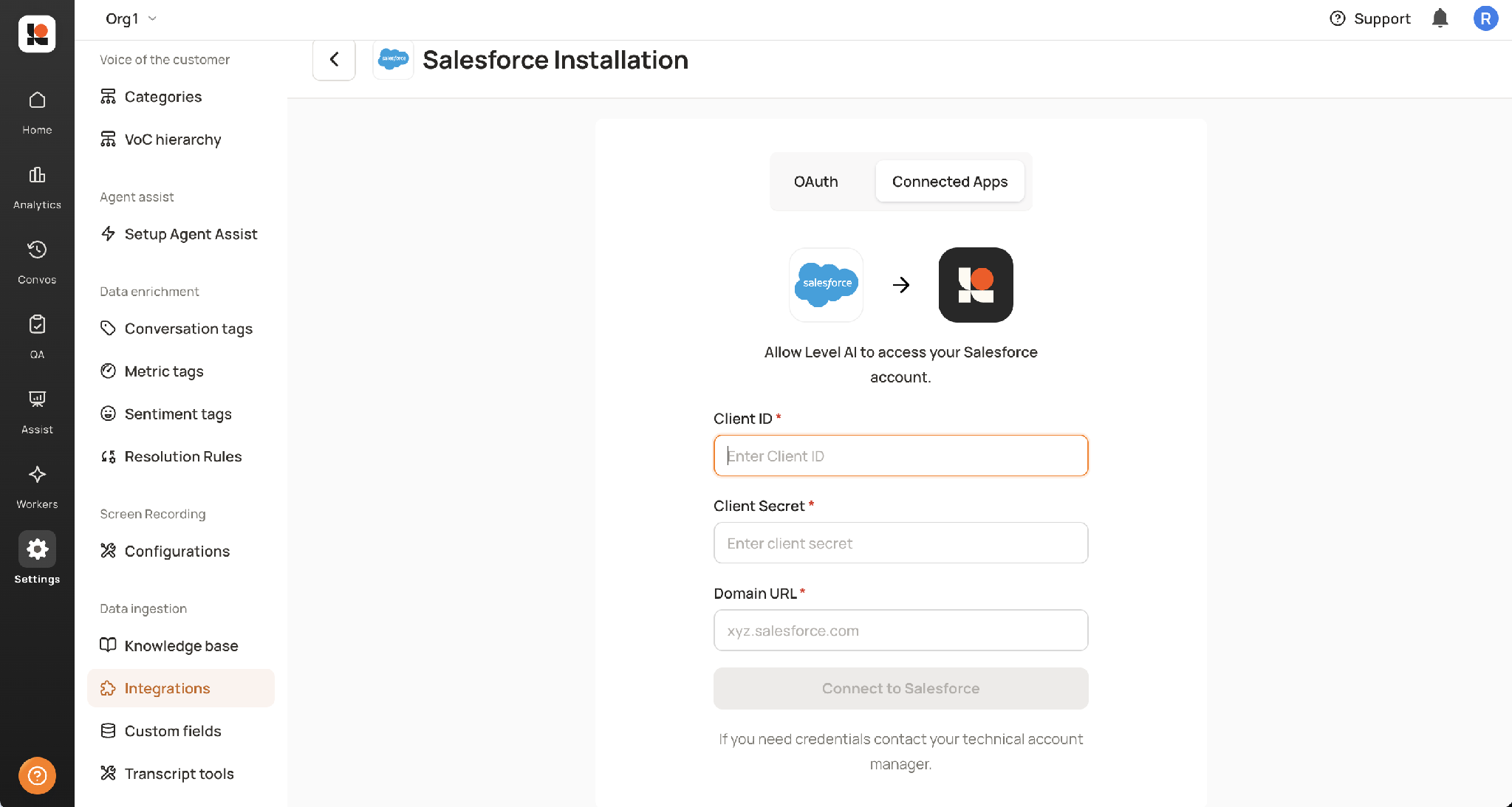
Enter the credentials:
Client ID: the Connected App's Consumer Key
Client Secret: the Connected App's Consumer Secret
Domain URL: your Salesforce org domain, for example acme.salesforce.com
Select Connect to Salesforce.